

How to Integrate Google Meet with Salesforce
Salesforce is the backbone of many sales and support teams, while Google Meet is a go-to platform for virtual meetings. Integrating Google Meet with Salesforce helps teams schedule, launch, and track meetings directly from Salesforce records—saving time and keeping all customer interactions in one place.
In this blog, we’ll walk through why this integration matters, integration approaches, and a high-level implementation guide using Salesforce and Google APIs.
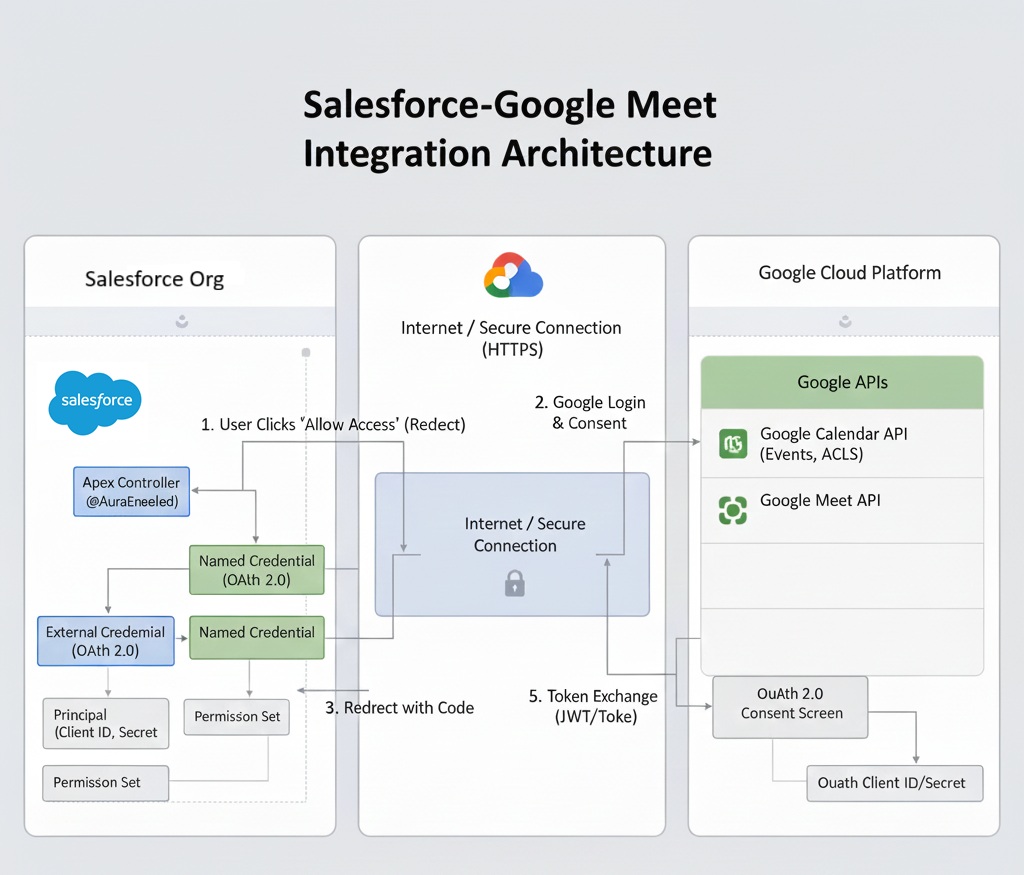
Step 1: Create a Google Cloud Project
- Go to the Google Cloud Console.
- Click the Project Dropdown (top left) and select New Project.
- Project Name: Give it a clear name like
Salesforce-Meet-Integration. - Location: Select your organization or leave it as “No organization” if this is a personal dev project.
- Hit Create.
Step 2: Enable the Google Calendar API
Your project needs permission to talk to the calendar service.
- In the left-hand sidebar, navigate to APIs & Services > Library.
- Search for “Google Calendar API”.
- Click on the result and hit the Enable button.
Step 3: Configure OAuth Consent Screen
Salesforce will authenticate as an external application, so OAuth is required.
- Go to APIs & Services > OAuth consent screen.
- Choose user type:
- Internal: Projects associated with a Google Cloud Organization can configure Internal users to limit authorization requests to members of the organization.
- External: Projects configured with a user type of External are available to any user with a Google Account.
- Fill app information
- App name: Salesforce Google Meet Integration
- User support email: Enter your email address.
- Developer contact email: Enter your email address.
- On the Data Access screen, click Add or Remove Scopes and In the “Manually add scopes” box, paste the following
https://www.googleapis.com/auth/calendarhttps://www.googleapis.com/auth/calendar.events
- Click Add to Table, then Update, then Save and Continue.
Note: If you select user type External, make sure to add testing user email in the audience.
Note: If you select user type External, make sure to add testing user email in the audience.
Step 4: Create OAuth 2.0 Credentials
Now, let’s get the “keys” for the front door.
- Go to APIs & Services > Credentials.
- Click + Create Credentials at the top and select OAuth client ID.
- Application Type: Select Web application.
- Name: Use something like
Salesforce Integration Client. - Authorized Redirect URIs: You’ll get the final URL from Salesforce after you create the Auth Provider. For now, you can leave it blank or use a placeholder, but don’t forget to come back and update this later!
- Click Create.
Note: Copy your Client ID and Client Secret. You’ll need these immediately for the Salesforce Auth Provider setup. Keep the Secret… well, secret!
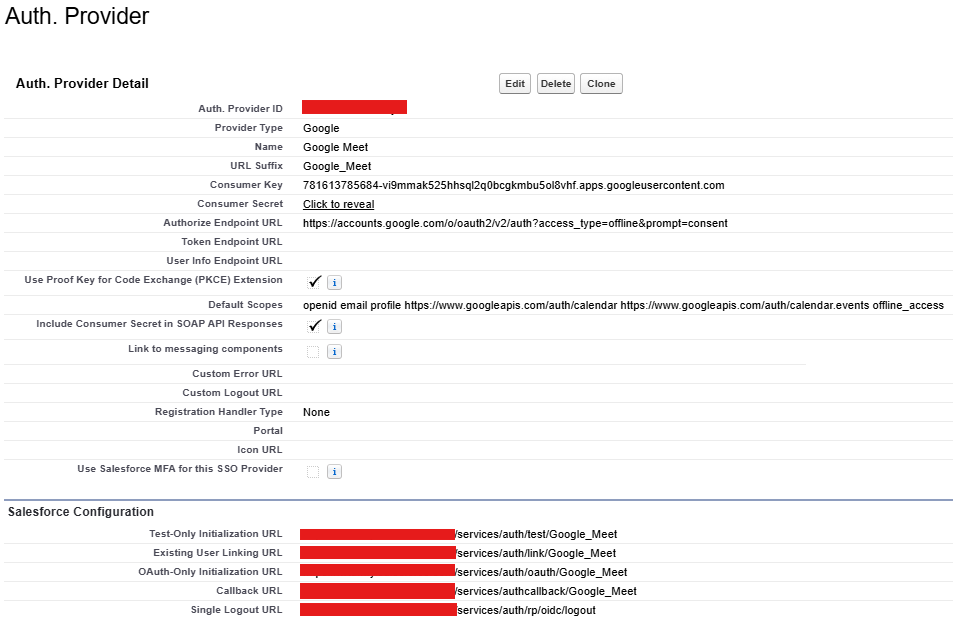
Step 5: Create the Auth Provider
Auth Provider handles OAuth authentication with Google.
- In Salesforce Setup, search for Auth. Providers and click New.
- Provider Type: Select Google.
- Name:
Google Meet(The URL Suffix will auto-populate). - Consumer Key: Paste the Client ID from your Google Cloud Project.
- Consumer Secret: Paste the Client Secret from your Google Cloud Project.
- Authorize Endpoint URL: https://accounts.google.com/o/oauth2/v2/auth?access_type=offline&prompt=consent
- Default Scopes: openid email profile https://www.googleapis.com/auth/calendar https://www.googleapis.com/auth/calendar.events offline_access
- Leave everything else as default and click Save.
After saving, scroll down to the Configuration Documents section. Copy the Callback URL. Go back to your Google Cloud Console > Credentials, edit your OAuth Client, and paste this URL into the Authorized redirect URIs section.
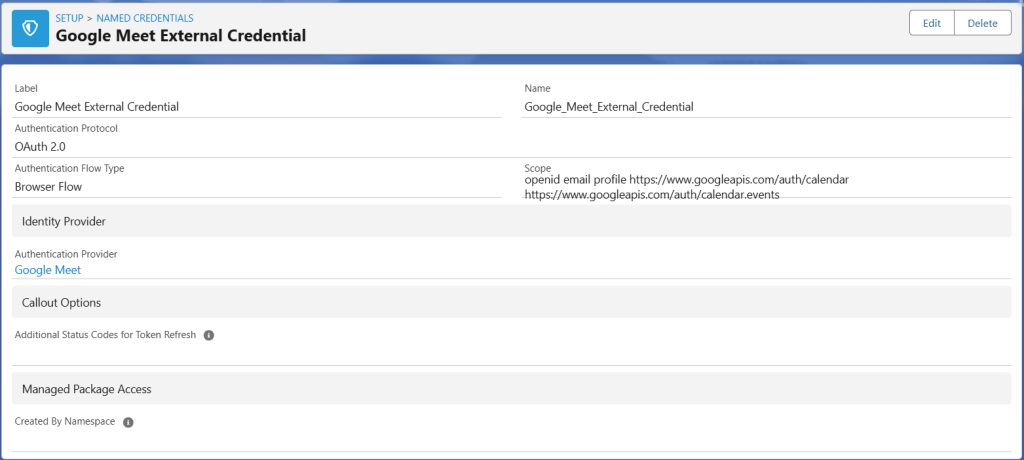
Step 6: Create External Credentials
External Credentials handle the “who” and “how” of the authentication protocol.
- Search for Named Credentials in Setup. Click the External Credentials tab and click New.
- Label:
Google Meet External Credential - Name:
Google_Meet_External_Credential - Authentication Flow Type: Browser Flow
- Scope: openid email profile https://www.googleapis.com/auth/calendar https://www.googleapis.com/auth/calendar.events
- Authentication Provider: Select the
Google Meetprovider you just created. - Click Save.
Add a Principal
- On the External Credential record you just saved, find the Principals section and click New.
- Parameter Name:
Per User - Sequence:
1 - Identity Type: Select Per User Principal.
- Click Save.

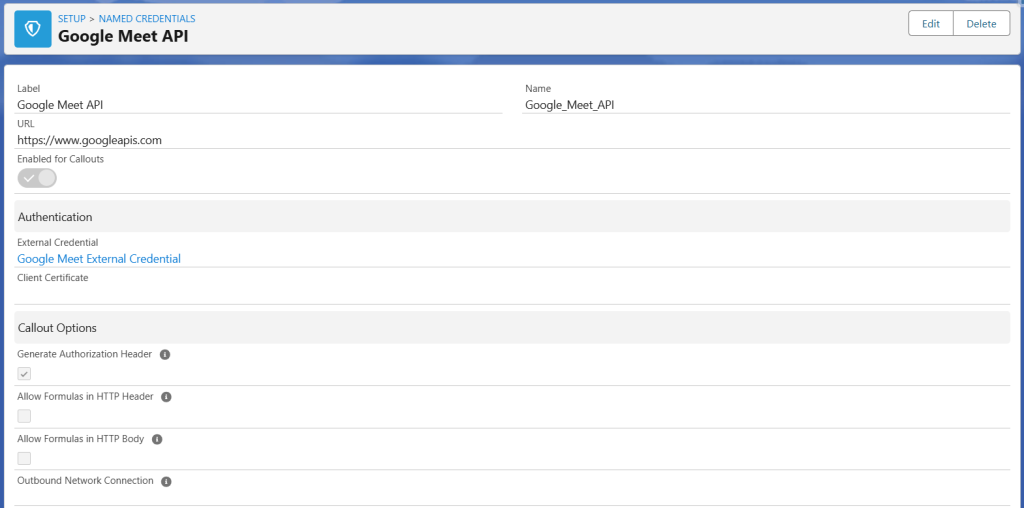
Step 7: Create the Named Credential
This defines the “where”—the actual endpoint for the Google Meet API.
- In Salesforce Setup, search for Named Credentials and click New.
- Label:
Google Meet API - Name:
Google_Meet_API - URL:
https://meet.googleapis.com - External Credential: Select
Google Meet External Credentialyou just created. - Generate Authorization Header: Keep this checked.
- Click Save.
Step 8: Grant Access via Permission Set
In the new External Credentials model, no one (not even admins) can use the credential until it’s assigned via a Permission Set.
- In Salesforce Setup, Go to Permission Sets and click New.
- Label:
Google_Meet_Access - Save the permission set.
- Click External Credential Principal Access in the permission set settings.
- Click Edit, add
Google_Meet_External_Credential - Per Userto the enabled list, and click Save. - Assign this Permission Set to yourself.
Step 9: Apex Class & LWC to Create Google Meet Link
Time to bring it to life on the UI! Since LWC can’t directly use Named Credentials for security reasons, we need a middleman an Apex Controller to handle the API callout, and then the LWC to display the results. Befor that please create GoogleMeet_Session__c custom object and fields to store the session records or customize the following code as per your needs.
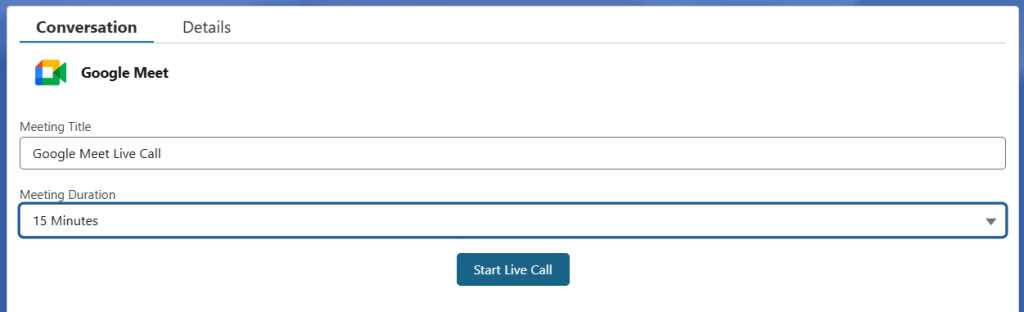
The Apex Controller (GoogleMeetController.cls)
public with sharing class GoogleMeetController {

    @AuraEnabled
    public static SessionResponse createGoogleMeetSession(String objectType, Id recordId, String title, Integer durationMinutes) {
        Datetime startTime = Datetime.now();
        Datetime endTime = Datetime.now().addMinutes(durationMinutes);
        Map<String, Object> event = new Map<String, Object>{
            'summary' => title,
                'description' => 'This Google Meet was created from Salesforce LWC.',
                'start' => new Map<String, String>{ 'dateTime' => startTime.formatGMT('yyyy-MM-dd\'T\'HH:mm:ss\'Z\'') },
                    'end' => new Map<String, String>{ 'dateTime' => endTime.formatGMT('yyyy-MM-dd\'T\'HH:mm:ss\'Z\'') },
                        'conferenceData' => new Map<String, Object>{
                            'createRequest' => new Map<String, Object>{
                                'requestId' => String.valueOf(System.currentTimeMillis()),
                                    'conferenceSolutionKey' => new Map<String, String>{ 'type' => 'hangoutsMeet' }
                            }
                        }
        };

        HttpRequest req = new HttpRequest();
        req.setEndpoint('callout:Google_Meet_API/calendar/v3/calendars/primary/events?conferenceDataVersion=1');
        req.setMethod('POST');
        req.setHeader('Content-Type', 'application/json');
        req.setBody(JSON.serialize(event));
        system.debug('GoogleMeetController -> createGoogleMeetSession -> Request:' + JSON.serialize(event));
        Http http = new Http();
        HTTPResponse res = http.send(req);

        if (res.getStatusCode() == 200 || res.getStatusCode() == 201) {
            system.debug('GoogleMeetController -> createGoogleMeetSession -> Body:' + res.getBody());
            Map<String, Object> result = (Map<String, Object>) JSON.deserializeUntyped(res.getBody());
            GoogleMeetModel meetModel = parse(result);

            GoogleMeet_Session__c session = new GoogleMeet_Session__c(
                    GoogleMeet_Id__c = meetModel.googleMeetId,
                    Meeting_Url__c = meetModel.meetingUrl,
                    Start_Time__c = startTime,
                    End_Time__c = endTime,
                    Summary__c = meetModel.summary,
                    Object_Type__c = objectType,
                    Record_Id__c = recordId
                );
                insert session;

                SessionResponse response = new SessionResponse();
                response.meetingUrl = meetModel.meetingUrl;
                response.sessionId = session.Id;
            	return response;
        }
        throw new AuraHandledException('Failed to create Google Meet. Status: ' + res.getStatus() + ', Body: ' + res.getBody());
    }

    @AuraEnabled
    public static void endGoogleMeetSession(Id sessionId) {
        if (sessionId == null) {
            throw new AuraHandledException('Session Id is required.');
        }

        GoogleMeet_Session__c session = new GoogleMeet_Session__c(
            Id = sessionId,
            End_Time__c = Datetime.now()
        );

        update session;
    }

    private static GoogleMeetModel parse(Map<String, Object> result) {
        GoogleMeetModel model = new GoogleMeetModel();

        try {
            if (result == null || result.isEmpty()) {
                throw new AuraHandledException('Invalid Google Meet response.');
            }

            model.googleMeetId = (String) result.get('id');
            model.summary = (String) result.get('summary');

            // Extract Google Meet URL
            if (result.containsKey('conferenceData')) {
                Map<String, Object> confData = (Map<String, Object>) result.get('conferenceData');
                if (confData.containsKey('entryPoints')) {
                    List<Object> entryPoints = (List<Object>) confData.get('entryPoints');
                    for (Object ep : entryPoints) {
                        Map<String, Object> entry = (Map<String, Object>) ep;
                        if (entry.get('entryPointType') == 'video') {
                            model.meetingUrl = (String) entry.get('uri');
                            break;
                        }
                    }
                }
            }

        } catch (Exception e) {
            System.debug('GoogleMeetController.parse Error: ' + e.getMessage());
            throw new AuraHandledException('Failed to parse Google Meet response: ' + e.getMessage());
        }

        return model;
    }

    private class GoogleMeetModel {
        public String googleMeetId { get; set; }
        public String meetingUrl { get; set; }
        public String summary { get; set; }
    }

     public class SessionResponse {
        @AuraEnabled public String meetingUrl;
        @AuraEnabled public Id sessionId;
    }

}
The LWC HTML (googleMeetWidget.html)
<template>
    <article class="slds-card slds-card_container">
        <div class="slds-card__header slds-grid">
            <header class="slds-media slds-media_center slds-has-flexi-truncate">
                <div class="slds-media__figure slds-m-around_none">
                    <img src={googleMeetIconUrl} alt="Google Meet" class="meet-icon" />
                </div>
                <div class="slds-media__body">
                    <h2 class="slds-card__header-title">
                        Google Meet
                    </h2>
                </div>
            </header>
        </div>
        <div class="slds-card__body slds-p-around_small slds-m-bottom_large">
            <div class="slds-tile__detail">
                <template if:false={meetLink}>
                    <lightning-input
                        label="Meeting Title"
                        value={meetingTitle}
                        onchange={handleTitleChange}
                        placeholder="Enter title"
                        class="slds-m-bottom_small">
                    </lightning-input>

                    <lightning-combobox
                        name="duration"
                        label="Meeting Duration"
                        value={selectedDuration}
                        placeholder="Select Duration"
                        options={durationOptions}
                        onchange={handleDurationChange}
                        class="slds-m-bottom_medium">
                    </lightning-combobox>

                    <lightning-button
                        label="Start Live Call"
                        variant="brand"
                        onclick={handleStartCall}
                        disabled={isLoading}
                        class="slds-align_absolute-center">
                    </lightning-button>
                    <template if:true={isLoading}>
                        <lightning-spinner alternative-text="Creating Meeting..." size="small"></lightning-spinner>
                    </template>
                </template>

                <template if:true={meetLink}>
                    <div class="slds-box slds-theme_shade slds-m-vertical_medium slds-p-around_small slds-grid slds-grid_align-spread">
                        <lightning-formatted-url value={meetLink} label={meetLink}></lightning-formatted-url>
                        <lightning-button-icon icon-name="utility:copy" alternative-text="Copy" title="Copy" onclick={copyLink}></lightning-button-icon>
                    </div>

                    <div class="slds-m-top_small slds-align_absolute-center">
                        <lightning-button label="Join Now" variant="brand" icon-name="utility:add" class="slds-m-right_small" onclick={openMeet}></lightning-button>
                        <lightning-button label="End Session" variant="destructive" icon-name="utility:stop" onclick={endSession}></lightning-button>
                    </div>
                </template>
            </div>
        </div>
    </article>
</template>
The LWC JavaScript (googleMeetWidget.js
import { LightningElement, api, track } from 'lwc';
import { ShowToastEvent } from 'lightning/platformShowToastEvent';
import createGoogleMeetSession from '@salesforce/apex/GoogleMeetController.createGoogleMeetSession';
import endGoogleMeetSession from '@salesforce/apex/GoogleMeetController.endGoogleMeetSession';
import googleMeetIcon from '@salesforce/resourceUrl/googleMeetIcon';

export default class GoogleMeetWidget extends LightningElement {
    @api recordId;
    @api objectApiName;
    @track meetLink;
    @track sessionId;
    @track isLoading = false;
    @track meetingTitle = 'Google Meet Live Call';
    @track selectedDuration = '15';
    googleMeetIconUrl = googleMeetIcon;
    jQueryLoaded = false;

    async handleStartCall() {
        this.isLoading = true;
        try {
            const result = await createGoogleMeetSession({
                objectType: this.objectApiName,
                recordId: this.recordId,
                title: this.meetingTitle,
                durationMinutes: parseInt(this.selectedDuration, 10)
            });
            this.meetLink = result.meetingUrl;
            this.sessionId = result.sessionId;
            this.showToast('Success', 'Google Meet link created successfully.', 'success');
        } catch (error) {
            console.error('Error creating Google Meet:', error);
            this.showToast('Error', 'Failed to create Google Meet. Check logs.', 'error');
        } finally {
            this.isLoading = false;
        }
    }

    openMeet() {
        if (this.meetLink) {
            window.open(this.meetLink, '_blank');
        }
    }

    copyLink() {
        if (this.meetLink) {
            if (navigator.clipboard && navigator.clipboard.writeText) {
                navigator.clipboard.writeText(this.meetLink)
                    .then(() => {
                        this.showToast('Success', 'Meeting link copied to clipboard!', 'success');
                    })
                    .catch((err) => {
                        console.error('Clipboard error:', err);
                        this.fallbackCopy(this.meetLink);
                    });
            } else {
                this.fallbackCopy(this.meetLink);
            }
        }
    }


    fallbackCopy(text) {
        try {
            const textarea = document.createElement('textarea');
            textarea.value = text;
            textarea.style.position = 'fixed';
            textarea.style.opacity = '0';
            document.body.appendChild(textarea);
            textarea.select();
            document.execCommand('copy');
            document.body.removeChild(textarea);
            this.showToast('Success', 'Meeting link copied to clipboard!', 'success');
        } catch (err) {
            console.error('Fallback copy failed:', err);
            this.showToast('Error', 'Unable to copy link. Please copy manually.', 'error');
        }
    }

    endSession() {
        endGoogleMeetSession({ sessionId: this.sessionId })
        .then(() => {
            this.showToast('Session Ended', 'You can start a new live call now.', 'info');
            this.meetLink = null;
            this.isLoading = false;
        })
        .catch(error => {
            this.showToast('Error', 'Error in session end please contact system administrator.', 'error');
        });
    }

    showToast(title, message, variant) {
        this.dispatchEvent(
            new ShowToastEvent({
                title,
                message,
                variant,
                mode: 'dismissable'
            })
        );
    }

    durationOptions = [
        { label: '5 Minutes', value: '5' },
        { label: '10 Minutes', value: '10' },
        { label: '15 Minutes', value: '15' },
        { label: '20 Minutes', value: '20' },
        { label: '25 Minutes', value: '25' },
        { label: '30 Minutes', value: '30' }
    ];

    handleTitleChange(event) {
        this.meetingTitle = event.target.value;
    }

    handleDurationChange(event) {
        this.selectedDuration = event.detail.value;
    }
}
Component Metadata (googleMeetWidget
<?xml version="1.0"?>
<LightningComponentBundle xmlns="http://soap.sforce.com/2006/04/metadata">
	<apiVersion>63.0</apiVersion>
	<isExposed>true</isExposed>
	<targets>
		<target>lightning__RecordPage</target>
	</targets>
</LightningComponentBundle>
Summary
Integrating Google Meet with Salesforce enables teams to create and join meetings directly from the Salesforce platform, eliminating context switching and improving productivity. In this blog, we walked through the complete foundation required to achieve this integration—from setting up a Google Cloud project and enabling the necessary APIs, to configuring OAuth authentication in Salesforce using Auth Providers, External Credentials, and Named Credentials.